Sunday, June 30, 2024

Terraform script to add a new vmxnet3 network adapter to a VM in vCenter

 Using this script add a new vmxnet3 network adapter to a VM in vCenter


Replace "your-vcenter-username", "your-vcenter-password", "your-vcenter-server", "your-datacenter-name", "your-cluster-name", and "your-vm-name" with your actual vCenter details.


"network-id" should be replaced with the ID of the network to which you want to connect the new vmxnet3 adapter.


Make sure you have the required Terraform provider for vSphere installed. 

You can run the script using the terraform apply command once everything is set up


provider "vsphere" {

  user           = "your-vcenter-username"

  password       = "your-vcenter-password"

  vsphere_server = "your-vcenter-server"


  # If you have a self-signed cert

  allow_unverified_ssl = true

}


data "vsphere_datacenter" "dc" {

  name = "your-datacenter-name"

}


data "vsphere_compute_cluster" "cluster" {

  name          = "your-cluster-name"

  datacenter_id = data.vsphere_datacenter.dc.id

}


data "vsphere_virtual_machine" "vm" {

  name          = "your-vm-name"

  datacenter_id = data.vsphere_datacenter.dc.id

}


resource "vsphere_virtual_machine_network_interface" "vmxnet3" {

  type         = "vmxnet3"

  network_id   = "network-id"  # Replace with your network id

  virtual_machine_id = data.vsphere_virtual_machine.vm.id

}


Wednesday, June 5, 2024

How to check MTU settings are consistent and properly configured across your network.

 You can use the Path Maximum Transmission Unit (PMTU) command on the HCX connector to verify the MTU configuration.


Login to HCX connector.

Go to IX connector 

Run PMTU command


The PMTU command helps you determine the maximum packet size that can be transmitted without fragmentation across the network path.


This command will provide you with the Path MTU for different paths, helping you ensure that the MTU settings are consistent and properly configured across your network

Thursday, May 30, 2024

automate HCX VM migration using Powershell

To automate HCX VM migration using PowerShell, you can use VMware PowerCLI cmdlets. 


Install VMware PowerCLI: Ensure you have VMware PowerCLI installed on your machine. 

You can download and install it from the official VMware website.


Connect to HCX: Use the following command to connect to your HCX server:


Connect-HCXServer -Server <HCX_Server_Name> -User <Username> -Password <Password>


Define Variables: Define the necessary variables for the source and destination sites, VMs, and networks:


New-HCXMigration -SourceSite $HCXSRC -DestinationSite $HCXDEST -Folder $HCXCTR -TargetComputeContainer $COMPCTR -NetworkMapping $TargetNW -TargetDatastore $TargetDS -VM $VM -ScheduleStartTime '03/08/2019 06:36:00 AM' -ScheduleEndTime '03/18/2019 07:36:00' -MigrationType Bulk

Monday, May 13, 2024

HCX Service Mesh deployment fails with Could not find an OVERLAY transport zone


ISSUE:

The affected environment has the following configuration:
- NSX is deployed in On-Premises and no Overlay-TZ is configured in the HCX Network Profile
- The WANOPT is selected during the Service Mesh deployment


Cause
When using an WAN Optimization appliance, an Overlay Transport Zone is required for communication with the IX appliance. This issue can occur if there is NSX on-premises and no overlay segment is configured in the HCX network profile.


Resolution
- Create a new overlay transport zone for the WANOPT.
Or 
- Deploy the service mesh without WANOPT


Sunday, March 10, 2024

Deploy HCX from AZURE CLI


deploy hcx from azure cli

To deploy VMware HCX using Azure CLI, you'll need to follow these steps:


1. Install Azure CLI: Ensure you have the Azure CLI installed on your machine. You can download and install it from the official Azure website.

2. Login to Azure: Use the following command to log in to your Azure account:

az login

3. Create a Resource Group: If you don't have a resource group, create one using:

az group create --name <ResourceGroupName> --location <Location>

4. Deploy HCX: Use the Azure CLI to deploy the HCX Cloud Manager and HCX Connector. Here's an example command:

az vm create --resource-group <ResourceGroupName> --name <VMName> --image <ImageName> --size <VMSize> --location <Location> --nics <NICName> --admin-username <Username> --admin-password <Password>


Saturday, February 17, 2024

Open Network Ports for HCX


To ensure smooth communication between HCX Manager appliances and the vCenter Servers at both the source and destination sites, you need to open specific network ports


Friday, February 2, 2024

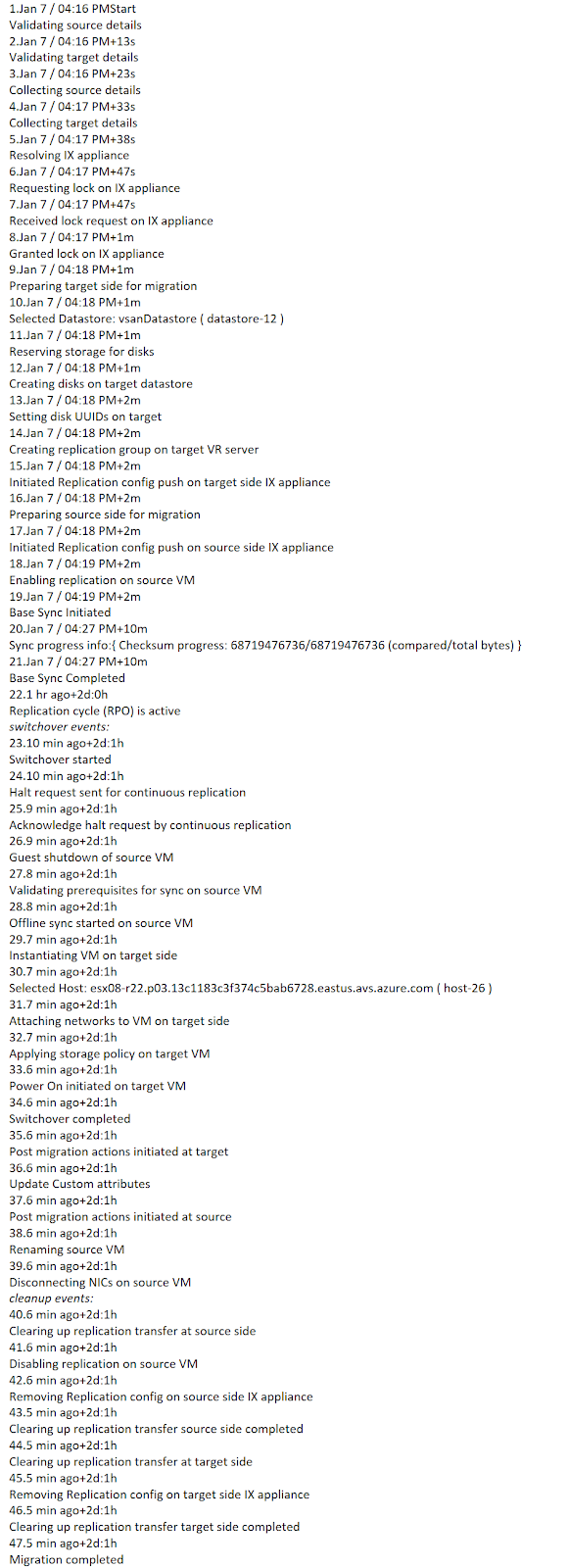
HCX Bulk migration tasks


When you start a bulk migration using VMware HCX, several tasks are initiated to ensure a smooth and efficient migration process. Here's an overview of the key tasks


RAV migration cutover was failing after sync

 Issue: HCX RAV migration was failing after base sync and while cutover the VM. Noticed below error in hcx connector app logs. TxId: 4cda256...